Classroom noise meter
You’re watching a demo signal. Start to hear your room. Nothing is recorded.
Put it on the projector. It learns how quiet your room really is, then shows the class when the volume creeps up.
Why it works
Built for the back row
Most noise meters show a number in decibels. Kids can’t read a decibel, and a laptop microphone can’t measure one accurately anyway. This one shows a state instead: Quiet, OK, Noisy, Too loud, in colors you can read from across the room.
Before the first lesson it listens to ten quiet seconds and uses that as the floor. Every threshold sits above your room’s own baseline, so it behaves the same with a Chromebook in a small classroom and a webcam mic in the gym. Enter your class list once and the seating chart maker, name picker and group generator use it too.
 Back row · ≈ 9 m
Four scenes
Same room, different rules
Test
Noisy +5 · Too loud +10
Tests and silent reading. A whisper already counts.
Independent
Noisy +10 · Too loud +15
Quiet work time. Pencils and the odd question are fine.
Group
Noisy +15 · Too loud +22
Table talk at an indoor voice. Shouting across the room is not.
Free time
Noisy +20 · Too loud +28
Indoor recess, crafts and games. Only real chaos trips it.
Calibration
Ten quiet seconds
- 1
Hush
For ten seconds the meter samples the room: the heater, the projector fan, the hallway.
- 2
Find the floor
It takes a low percentile, so one cough or a dropped book can’t move the floor.
- 3
Lines float above
Noisy and Too loud sit a set distance above that floor. Change rooms or devices and they move with it.
In the room
Getting a class to buy in
Calibrate with them
Make the ten quiet seconds a game. The class sets the floor, so the meter is theirs, not yours.
Pick the scene out loud
“We’re in Group work now.” Kids learn the lines faster when the rule changes with the activity.
Leave the sound off at first
The color change is enough for most classes. Turn on the chime when the visual stops working.
Count quiet time, not alerts
The quiet-time counter is the number to celebrate. Five quiet minutes can earn a reward.
Same engine
Five more ways to show it
Bubble noise meter
Calm drift to a full boil. Best for the youngest.
Open bubbles →
Bouncy ball noise meter
A resting pile that jumps when the room gets loud.
Open bouncy balls →
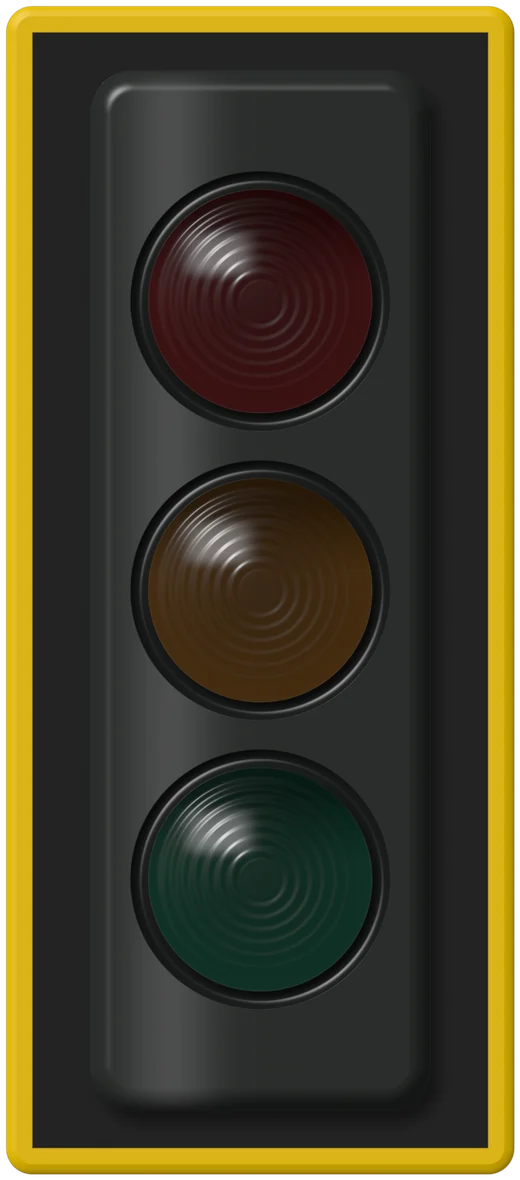



Noise traffic light for classroom
Green, yellow, red. Nothing to explain.
Open traffic light →
Classroom noise monitor
Five minutes of history with scene lines and an alarm.
Open monitor →
Custom noise meter
Your own pictures bounce or float. Nothing uploaded.
Open your pictures →
Privacy
Nothing leaves this browser.
No recording
Sound is reduced to one loudness number about twenty times a second, then discarded.
No upload
Nothing is sent to a server. Load the page, unplug the internet, and the meter keeps working.
No account
No sign-up, no student data. Settings live in this browser only.
No tricks
We switch off the browser’s auto-volume so a loud room actually reads as loud.
Questions teachers ask
FAQ
Does it record my class?
No. The audio is turned into a single loudness number about twenty times a second, inside your browser, and then thrown away. Nothing is stored, uploaded or sent anywhere. You can unplug the internet after the page loads and it keeps working.
How accurate is it?
It is a classroom management tool, not a sound level meter. Browser microphones aren’t calibrated, so two laptops can read the same room 10 dB apart. That’s why it measures from your room’s quiet baseline instead of fixed decibels. If you want real numbers, read a phone sound meter app once and type it in under Settings.
Why does it ask for ten quiet seconds?
That’s the calibration. It records your room’s quiet floor (the hum of the heater, the projector fan) and puts every threshold above it. It only runs once per device; you can redo it any time with Recalibrate.
Does it work on Chromebooks and iPads?
Yes. It runs in Chrome, Edge, Firefox and Safari, including school-managed Chromebooks and iPads. If your district blocks microphone access, your IT admin can allow it for this site.
Is it free?
Yes, the meter and every visual mode are free with no account. An optional Pro plan, $36 a year, syncs your classes across computers and keeps a week or a term of lesson reports.
Can I put the meter on my class website?
Yes. Press Embed under the meter, pick a style and size, and paste the code into Google Sites (Insert → Embed), Canvas, Schoology or any page that accepts HTML. It runs the same calibrated meter, and the microphone audio still never leaves the browser.
Does it work offline or as an app?
Yes. In Chrome or Edge, use Install app (or the install icon in the address bar) and it opens from the shelf or dock like an app. After the first visit the meters keep working without an internet connection.
Is there a reward system?
Turn on the Quiet jar: every full minute of Quiet or OK drops a marble into a glass jar beside the meter. Set the goal (10, 20 or 30 marbles) and the reward, and the jar announces it when it’s full. Marbles never come out; Too loud only restarts the current minute.
The microphone button doesn’t work. What now?
Click the lock or camera icon in the address bar and allow the microphone, then press Start again. On a managed Chromebook the setting may be locked by your school; the error message on the meter tells you which case you’re in.